Plans help a group move from chat to a real time. Ask who is free, turn the best slot into an event, or start a quick meeting when enough people are around.
Where to find it: Open a group and choose Events in the left rail (a small group calls it Plans, and also shows a plans rail above its chat).
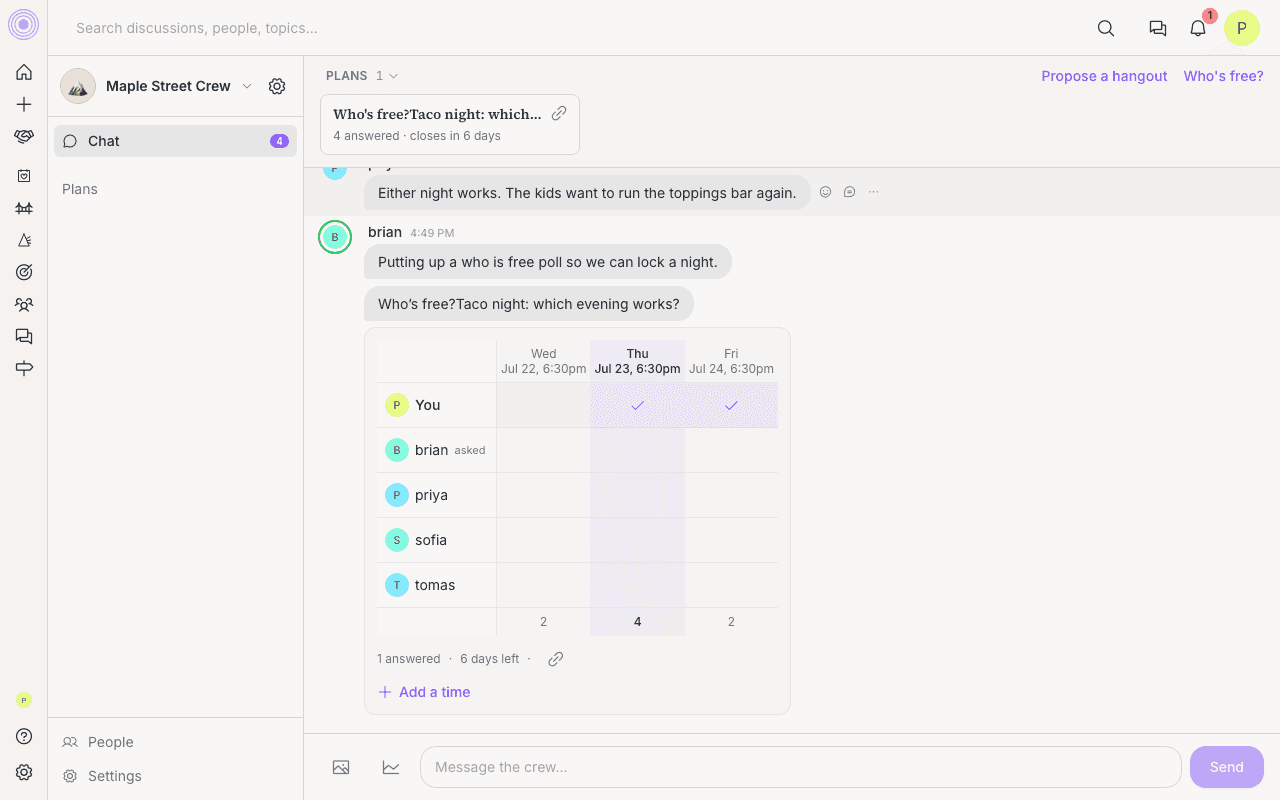
Ask who is free
- Click Who's free? in the plans view (or the plans rail in a small group).
- The group's chat opens with Who's free? and a time poll ready to edit.
- Add the times that could work, then send the message.
Time polls show as an availability grid. The plans view lists open questions first, with how many people answered and when the poll closes.
Share it outside the group
An open time poll can show a share button for a public Who's free? link. The public page lives at /whos-free/[token] and says Tap the times that work for you. No account needed.
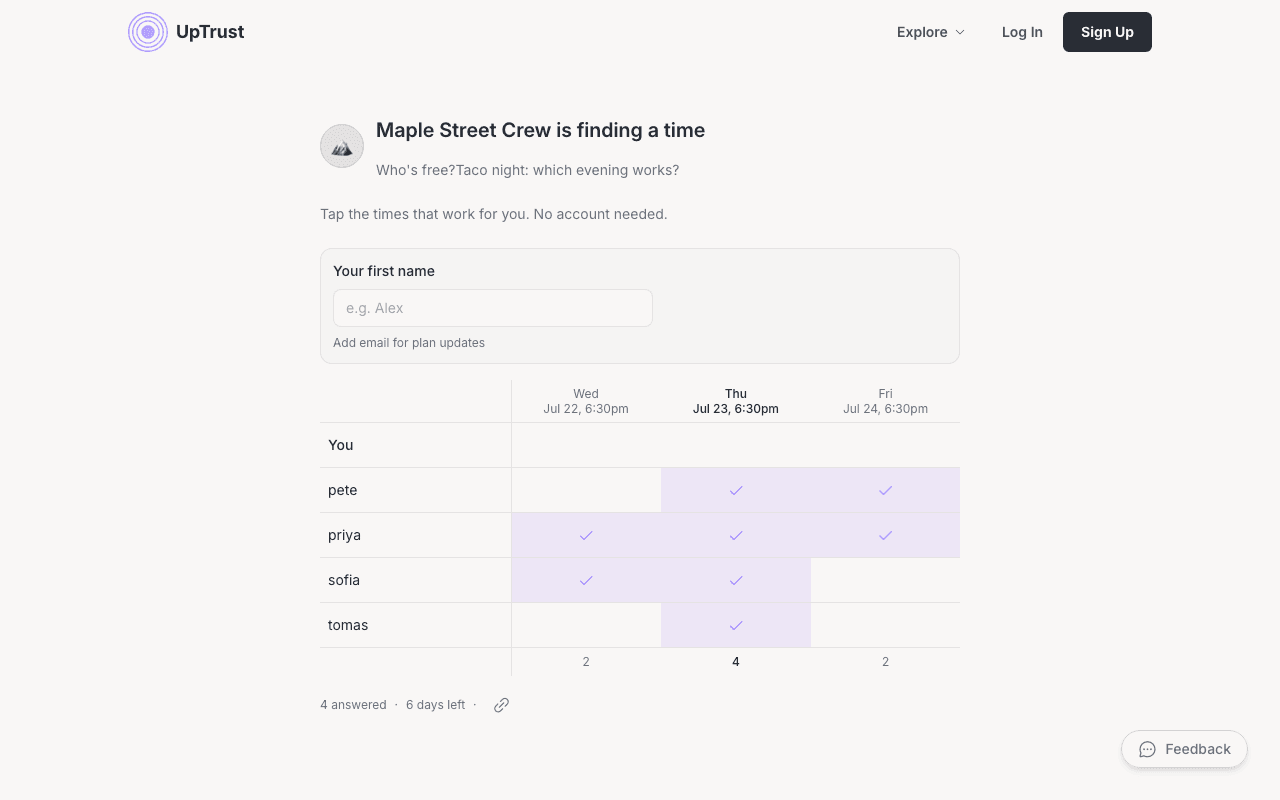
Guests enter Your first name, may use Add email for plan updates, and tap the times that work. The grid shows other respondents by first name only. After a returning guest answers, they may see Claim your spot in followed by the group's name.
Who can see guest emails
Make it a plan
If enough people say yes to a time, the poll author can click Make it a plan under that time. If the poll is still open, UpTrust asks the author to close availability first, then opens the event form with that slot.
The poll flow invites the poll participants and then marks the poll with the new event.
You can also click Propose a hangout (in a small group) or Create event. That opens /events/new for the group with What, When, Where, Who's coming?, and Anything else?. A small group is picked in Who's coming?, so everyone in it gets an invite.
Use Free right now
In the plans view, group admins can turn on Free right now. Members then use I'm free right now to signal they are available. When enough members are free, a meeting starts and everyone free is invited.
Admins can open the gear on the Free right now card, set how many free members are needed, save the setting, or turn the mode off.