Hosting an event is a warm way to bring people together around something you care about. Setting one up takes a couple of minutes, and you decide who gets to see it.
Where to find it: Open Events and tap Create, or go straight to the new event page.
What to fill in
- Title and description. Give it a clear name and a few words about what it is. You can format the description and add images (paste, drop, or Add image).
- Place, date, and time. Add where and when. The place can be an address, or you can turn on Online event and paste a meeting link.
- Cover image and topics. Add a photo if you like, and pick a few topics so the right people can find it.
In the app, tap Add cover image to pick a photo. Tap Change image to swap it, or remove it with the button on the image.
Online events
To run your event online, turn on Online event and paste your meeting link. It works with Zoom, Google Meet, Jitsi, or any other tool you already use. You can add a place too if your event is part in person and part online.
Who sees the link
Let guests bring people
Near the guest settings you decide whether the people you invite may bring anyone with them:
- Just the people you invite. No extra guests. This is the default.
- Their kids. Good for birthday parties. Each guest says how many kids they are bringing.
- A few extra guests. Each guest can bring along a set number of extra people.
For the last two, you set how many each guest may bring. Extra guests count toward your headcount but are not trust-checked one by one, since they come along with the person you invited.
Repeat your event
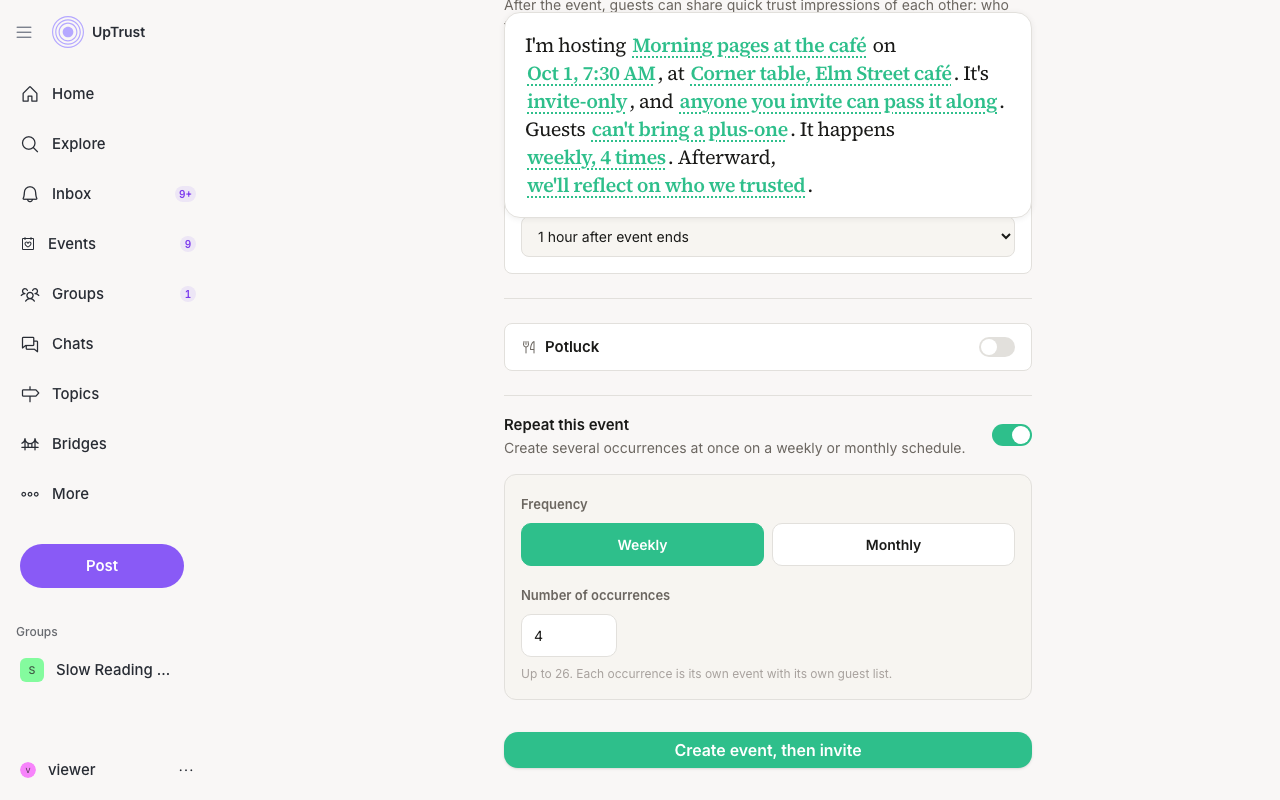
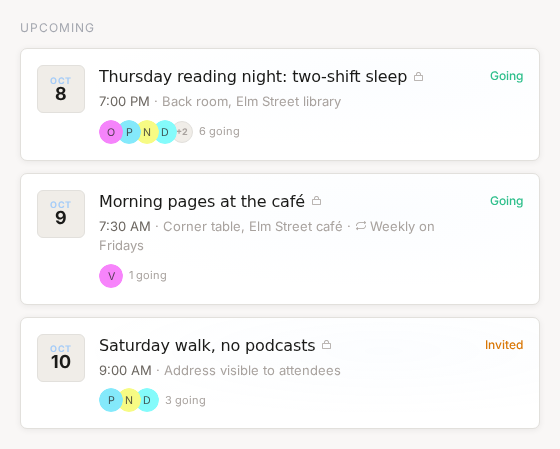
Turn on Repeat this event to make a weekly or monthly series. You choose how many times it repeats, up to 26. Each date keeps its own guest list and share link, but the events list shows the series once, at its next date, with a badge like Weekly on Fridays. Its page lists the other dates, and a guest can answer for one date or choose Going to all upcoming dates.
Who can see it
Before you finish, choose how open the event is.
- Public. Anyone on UpTrust can see it and reply.
- Private. Only you, your co-hosts, and people you invite can see it.
- Invite only. Like private, plus anyone who already has a reply can see it.
Under Who's coming?, you can invite up to five of your small groups in one go. If you create the event from a group, you can also turn on Invite all members so the whole group gets an invite.
Not sure when to hold it? Poll for a time first, and turn the winning slot into the event.
Keep it to trusted guests